Showing posts with label windows. Show all posts

Sunday, 21 April 2013

Trouble installing Adobe Flash Player on Firefox in Windows

Installing or updating Adobe Flash Player using the links redirecting it to its official online page almost never works for me. Be it network connection or some other problem, it is very difficult to get this working. What I usually get is this or some other kind of error:


The error I usually get when installing the online version
If you are one of me, don't worry, there is a solution to this; download the full offline installer!

To get the offline installer, download the offline version by clicking on the button below and follow the normal Next-Next-Finish method on Windows applications and you have the latest version of Adobe Flash Player.


Saturday, 9 February 2013

How to read files in Linux-based partitions from Windows?

A PC with Windows and Ubuntu lets you choose the best of both Operating Systems. While I use Windows usually for gaming, Ubuntu is all for work, and need to store data in both of them.

As you all are aware, Ubuntu can read NTFS, the file system that Windows uses, so can read and also store data into Windows' drives. But unfortunately, Windows is "blind" to ext partitions, i.e, Windows does not read data in ext partitions, the ones used by Ubuntu. So, while on Windows, I was unable to read files stored in my Ubuntu operating system. It was only when I came to know about Linux Reader, that I stopped rebooting my Windows to fetch files from Ubuntu.

Linux Reader is an application that lets you read Linux-based Operating System files from Windows.


Getting started:

To read files, first download this application and install using the usual Next-Next-Finish installation method of Windows and then open Linux Reader and choose the partition from which you want to read files from.

The first screen that you see when you open "Linux Reader"

This way, please:

I want to copy my Pictures folder from my /home partition. So I go to /home and then choose Pictures and then Save to save the folder to any location that you want in Windows.

The folder I want to save is located in /home. The screen shot shows "Pictures" folder is selected.


This will copy the files from your Linux partition to the folder you desire.

Select the location where you want to save the folder.


I have tested this application to work for Debian and Ubuntu, though it should work on all Linux-based operating systems.

Drawbacks:

  1. The worst thing about this application is you can't edit files unless you save them to Windows.

  2. The second drawback is a less serious one, but is relevant to some: Though this application is free of cost, its not open source, so you won't get to see the source code.

P.S.:There may be many other softwares better than these, offering more and better functionalities. Please let me know if you know of any. I liked Linux Reader, that's why I personally recommend this software.

Friday, 25 January 2013

How to measure the temperature of your processor?


If you have experienced that your laptop or desktop heats up a lot due to some strange reasons like may be having a dedicated graphics card and have wanted to check out some options to solve this, jupiter is one of the tools for you. This software was hinted to me by one of my good friends, +Pratik Nadagouda, thanks Nada!

jupiter is a tool that measures temperature and provides certain measures to reduce it like closing unwanted applications that are using up the processor and other resources.

To install jupiter, open "Software center" and go to "Edit" in the menu bar at the top. Select "Software Sources..." from the drop-down menu.

In the second tab, "Other softwares", click on "Add" button, and add the following line:
ppa:webupd8team/jupiter and click on "Add Source".


Then open a terminal and type:
sudo apt-get update and then
sudo apt-get install jupiter

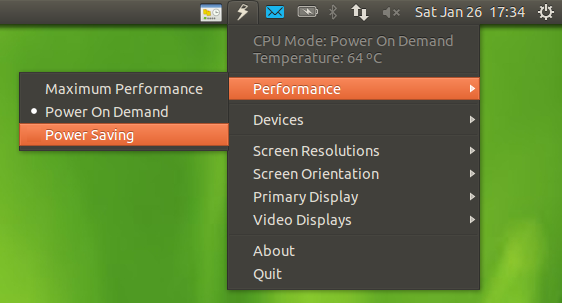
After jupiter is installed, a thunder-like icon appears at the top menu bar. Click on the icon to see the temperature of your processor.
"jupiter" tunes the kernel and processor for AC or battery and subsequently increases battery-life.
If you can compromise on a little performance, then jupiter offers a mode called "Power Saving"(in the performance option when you click on the thunder-like icon of jupiter). This helps to cool down the processor a bit, albeit with a trade-off with performance.

Tuesday, 18 December 2012

How to run an application from any path in Windows Command prompt

The problem:

If you need to open an application or software such as Microsoft Notepad, you need to go to the path where the application is installed, usually the default location is

C:\Windows\system32\

and then type

notepad

to open a new Notepad window. To search for the path where the application is installed, type the following on the prompt:

C:\>for %i in (notepad.exe) do @echo: %~$PATH:i
C:\WINDOWS\system32\notepad


Note the blank spaces, you need to specify it properly to work.

Replace

notepad

by the application name you want to search for.
This can be very irritating if you need to open an application often through the prompt and have to go to the path every time where the program is installed. If you try to type the name of the application anywhere other than the path where the application is installed, you will get an error which looks like this:


The solution:


To reduce this effort, you can specify Windows to search for the term you type in the prompt in certain fixed locations, called as class paths. You can specify the path to search as follows:

Start -> Settings -> Control Panel


Double-click on System, open "Advanced" tab, click on the "Environment Variables" button below. In the "System variables" frame below, scroll if there are many variables and click on "Path", click "Edit" to add or delete a new path. You can enter the path where your desired application is stored. If there are multiple paths, separate them by semi-colons(;).

For example, if you need to specify the class path for notepad++, installed at  

C:\Program files\Notepad++\


Click on "Path", then "Edit" button, if there already is a path specified, add a semi-colon after that, and type

C:\Program files\Notepad++\


after the already present path.

Now, you can type notepad++ at any path at the command prompt and a new "Notepad++" window will be opened.

Even more shorter:

In order to shorter the command notepad++, you can rename the file at the installed path to, say, np, and then type np at the prompt.
Caution: Renaming the executable file may cause the files linked to it, like a shortcut file on the Desktop, to stop working, so you will have to change the filename at respective locations too. However, this is one of the easiest methods to shorten the command. Please share if you find better methods to do so.